How to Convert HEIC to JPG: iPhone Photo Guide
Learn how to convert HEIC photos from your iPhone to JPG format. Free online conversion, no software needed, works on any device.
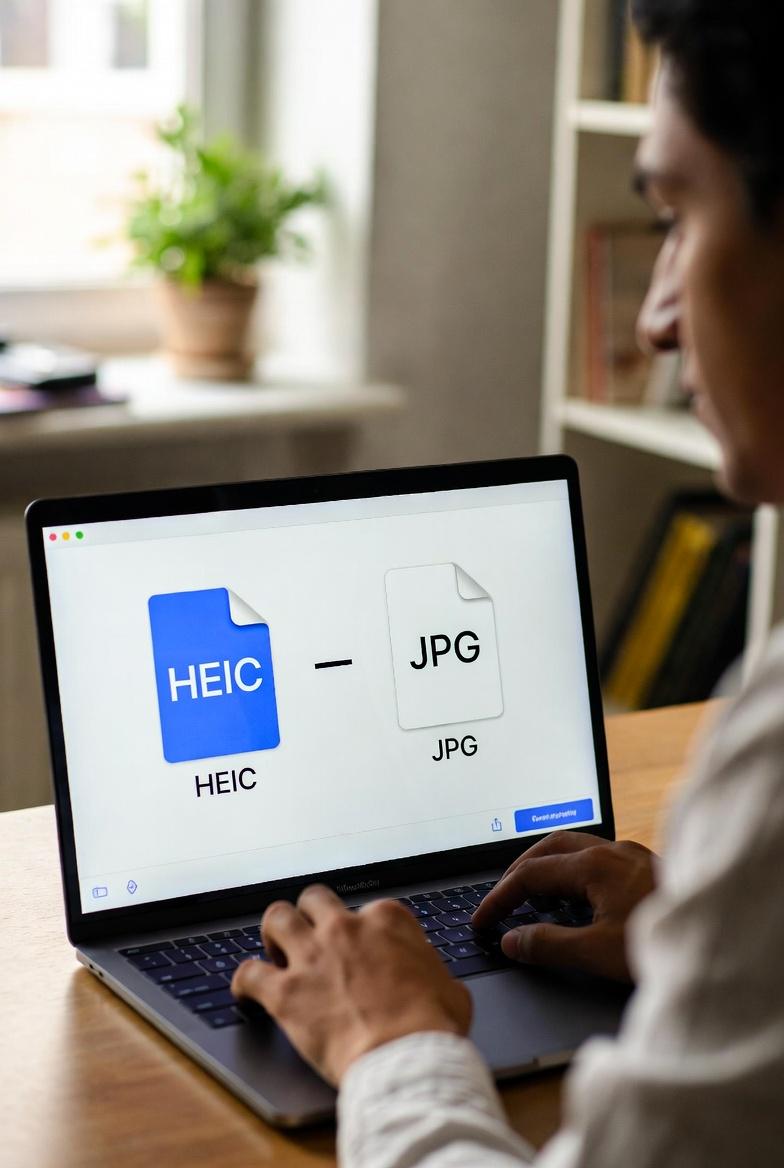
What is HEIC Format?
HEIC (High Efficiency Image Container) is Apple's default photo format since iOS 11. It offers several advantages:
- 50% smaller file size compared to JPEG at same quality
- 16-bit color depth vs JPEG's 8-bit
- Supports transparency and image sequences
- Better compression without quality loss
- Sharing on social media - Some platforms don't accept HEIC
- Sending to Windows users - Limited native HEIC support
- Uploading to websites - Many sites require JPG/PNG
- Older software - Photo editors may not support HEIC
- Email attachments - Better compatibility
- Upload your HEIC file
- Select JPG as output
- Download your converted file
- No software installation needed
- Works on any device (Mac, Windows, phone)
- Files processed locally (privacy protected)
- Completely free
- Go to Settings > Camera > Formats
- Select "Most Compatible"
- Photos will save as JPG instead of HEIC
- Open HEIC file in Preview
- File > Export
- Select JPEG format
- Install HEIF Image Extensions from Microsoft Store
- Open with Photos app
- Save as different format
- Quality: 90-95% for best balance
- Resolution: Original unless you need smaller files
- Color Profile: sRGB for web use
- Select all files at once - Most converters support batch upload
- Use consistent settings - Apply same quality to all
- Organize first - Name files appropriately before conversion
- Check file sizes - Ensure outputs meet your requirements
- Date and time taken
- GPS location
- Camera settings (ISO, aperture, etc.)
- Ensure file has .heic or .heif extension
- Try renaming from .HEIC to .heic (lowercase)
- HEIC uses different color profile
- Some detail loss is normal in compression
- JPG is less efficient than HEIC
- Use 85-90% quality to reduce size
- Storing long-term (better quality/size ratio)
- Editing in modern software (preserves data)
- Space is a concern (smaller files)
- Staying in Apple ecosystem
However, HEIC isn't universally supported, which is why you often need to convert to JPG.
Why Convert HEIC to JPG?
Common reasons for conversion:
Convert HEIC to JPG Online (Free)
The easiest method is using our free online converter:
Step-by-Step Guide
- Drag and drop or click to select
- Works with single or multiple files
- Choose from available formats
- JPG recommended for photos
- Instant conversion
- No watermarks or quality loss
Benefits of Online Conversion
Alternative Methods
On iPhone
Change your camera settings:
On Mac
On Windows
Quality Considerations
When converting HEIC to JPG:
| Aspect | HEIC | JPG |
| File Size | Smaller | Larger |
| Color Depth | 16-bit | 8-bit |
| Transparency | Supported | Not supported |
| Compatibility | Limited | Universal |
Recommended Settings
Batch Conversion Tips
Converting multiple files?
Preserving Photo Metadata
Important metadata includes:
Good converters preserve this information during conversion.
Common Issues and Solutions
"File not recognized"
"Converted image looks different"
"File size increased significantly"
When to Keep HEIC Format
Don't always convert - keep HEIC when:
Convert Your Photos Now
Ready to convert? Use our free file converter to transform HEIC photos to JPG instantly. No signup required, works in your browser.
Free File Converter
Convert images, audio, video, and documents in your browser — no upload, no sign-up, completely private.

Andrew
·Founder of ConvertzBuilding free, accurate conversion tools for everyone. All content is AI-assisted and editorially reviewed for accuracy. Learn more about Convertz
Try Our Free Converters
Convert currencies, cryptocurrencies, units, and files instantly with our free online tools.
Related Articles
What Is HEIF/HEIC? Apple's Format Explained
Understand the HEIF and HEIC image formats used by Apple devices. Learn why iPhones use HEIC, how to convert to JPG, and when to keep the original format.
Reduce Video File Size Without Losing Quality
Learn how to compress videos without visible quality loss. Covers codecs, resolution, bitrate, and free tools for reducing video file sizes by up to 90%.
PDF to Image: Best Ways to Convert to JPG/PNG
Compare the best methods to convert PDF files to images (JPG, PNG, TIFF). Covers free tools, quality settings, batch conversion, and when to use each format.
Related across Convertz
Country guides, key terms, and rate history that connect to this article.
Glossary
- Dynamic Currency Conversion (DCC)Dynamic Currency Conversion (DCC) is a service offered at point-of-sale terminals and ATMs…
- Base and Quote CurrencyIn any currency pair, the first currency listed is the "base" and the second is the "quote…
- IBAN (International Bank Account Number)An IBAN is a standardized international format for bank account numbers, used across 80+ c…